Thanks for downloading Magnetic! We’ve designed this theme to be flexible and customizable. As of version 2.0, Magnetic is a hybrid theme — it keeps its classic PHP templates while adding modern block editor integration through theme.json. Developers can use the included Sass source files and Bootstrap 4 grid to customize the theme. The defaults should give you a good starting point if you are not a developer and are using the theme for a general website or blog.
Installation
After you have downloaded the installable theme file, go to the Appearance > Themes portion of your WordPress site. From there, select Add New and then Upload Theme. Use the dialog box to select the downloaded file, then select Install Now. From there, use the theme customizer under Appearance > Customize to set up Magnetic.
What’s New in Version 2.0
Version 2.0 is a major update that modernizes Magnetic while preserving backward compatibility with existing sites.
Hybrid theme with theme.json — Magnetic now includes a theme.json configuration file that defines the theme’s colors, typography, and layout settings for the block editor. Your color palette and font choices now appear directly in the block editor’s design controls when editing posts and pages.
Block patterns — Four pre-built block patterns are available under the “Magnetic” category in the block editor’s pattern inserter:
- Hero Section — A full-width cover image with title and subtitle text
- Alternating Content Row — The signature Magnetic image-and-text layout, now as a reusable block pattern
- Dark Call to Action — A dark background banner with heading and button
- Team Section — A column layout for team member profiles
These patterns give you a modern alternative to building layouts manually or with widgets.
Block-based front page — The front page now automatically uses a block-based layout when no homepage widgets are active. If you have existing homepage widgets configured, the theme falls back to the classic widget layout — no changes needed on your end.
New page template: Full Width Hero — A new template featuring a flush hero image and wide content area, optimized for the block editor.
Font Awesome 6 — Icons have been updated from Font Awesome 5 to Font Awesome 6. If you referenced icons in custom HTML widgets or child themes, the class names have changed (e.g., fas fa-star is now fa-solid fa-star). See the Font Awesome migration guide for details.
Modernizr removed — The Modernizr library has been removed since modern browsers no longer require it. If your child theme references Modernizr feature detection classes on the <html> element, you may need to update your CSS. We streamlined the .no-js class with inline JavaScript.
Performance improvements — JavaScript files now load with the defer strategy, and stylesheets use file-based cache busting for more reliable updates. The theme is also compatible with WordPress 6.9’s on-demand block CSS loading.
Accessibility improvements — Navigation and footer landmarks now include proper ARIA attributes.
Requirements — Magnetic 2.0 requires WordPress 6.4 or later and PHP 7.4 or later.
Block Patterns
Magnetic includes block patterns that you can insert into any post or page from the block editor.
To use a pattern, open the block editor and click the + inserter button. Select the Patterns tab and look for the Magnetic category. Click any pattern to insert it, then customize the text and images to suit your content.
The available patterns are:
- Hero Section — A full-width cover block with a title and subtitle overlaying the image. Suitable for page headers or landing page hero areas.
- Alternating Content Row — A two-column layout with an image on one side and text on the other, matching the signature Magnetic homepage design. Insert multiple rows and swap the image and text sides to create an alternating effect.
- Dark Call to Action — A dark background section with a heading, subheading, and a button. Use this at the bottom of a page to direct visitors to take action.
- Team Section — A multi-column layout for team member photos and bios.
Block patterns are fully editable after insertion — you can change colors, text, images, and layout just like any other block content.
Block Editor Integration
Magnetic 2.0 integrates with the WordPress block editor through a theme.json configuration file. This means:
- Theme colors appear in the block editor’s color picker when you edit text, backgrounds, or buttons.
- Theme fonts and sizes are available in the typography controls.
- Wide and full-width alignment options are available for supported blocks, such as images, covers, and groups.
- Editor styles are loaded so the editor preview closely matches the front-end design.
These settings are defined in the theme.json file at the root of the theme. If you’re building a child theme, you can create your own theme.json to override or extend the parent theme’s settings. See the WordPress theme.json documentation for details.
Page Templates
In addition to the default template, Magnetic includes the following custom page templates.
- Background Image Header — Large, full-width image header with page title and smaller lead text overlaying the image. No sidebar widget area.
- Full Width — A page template optimized for the block editor and the wide-width and full-width blocks.
- Full Width Hero (new in 2.0) — A flush hero image header with a wide content area below. Designed for the block editor with support for wide and full-width blocks.
- No Sidebar — Standard template without the sidebar widget area.
- Default template — Standard template including the sidebar widget area.
Block Editor Support
Magnetic has full block editor support with editor styles that match the front-end design. The theme supports wide-width and full-width block alignments on compatible page templates (Full Width and Full Width Hero).
The theme also includes block patterns under the “Magnetic” category that you can insert from the block editor’s pattern library. See the Block Patterns section above.
If using the Background Image Header or default templates, wide and full-width blocks will display at the content column width. Use the Full Width or Full Width Hero templates for layouts that take advantage of wider blocks.
Theme Customization With Sass
Magnetic includes the SCSS source files for further customization. The theme is built using the _s framework. Review the src/scss directory to customize the theme further. You’ll need Node.js and a local development environment (beyond the scope of this guide). Assuming you have a local environment, here are a few steps to get started:
- Customize
package.jsonwith your details and repo. - Run
npm installfrom the command line. - See
gruntfile.jsfor the build settings. Feel free to use Gulp or your preferred setup. - Customize the Google fonts in
functions.php. - Set the “development mode” to
trueinfunctions.phpto avoid caching the CSS as you are working on it. - The theme uses the Bootstrap 4 grid. The entire Bootstrap library is not loaded, just the grid. It’s included in the theme files as needed.
- The theme uses Font Awesome 6 for icons. See the
fontawesome/directory for the included files. - Theme colors, typography, and spacing are also defined in
theme.json. If you’re customizing the design, update both the Sass variables andtheme.jsonto keep them in sync.
Upgrading from Version 1.x
Magnetic 2.0 is backwards compatible with existing 1.x installations. After updating:
- Homepage widgets — If you have configured homepage widgets, they will continue to work. No action needed.
- Child themes — If your child theme references Modernizr classes or Font Awesome 5 class names (
fas,far,fab), update those references. Modernizr has been removed, and Font Awesome has been updated to version 6 (e.g.,fas fa-envelopebecomesfa-solid fa-envelope). - Custom CSS — The theme now generates CSS custom properties from
theme.json. Your existing custom CSS will continue to work, but you can optionally start using the new custom properties for colors and spacing. - PHP version — Magnetic 2.0 requires PHP 7.4 or later. Check your hosting environment if you’re running an older version.
Child Theme
We are working on a child theme for download. In the meantime, see the WordPress documentation on child themes.
Recommended plugins
See our resources page for plugin recommendations.
Recommended hosting
See our roundup of WordPress hosts for recommendations.
Legacy Homepage Widgets
New in 2.0: If you’d prefer to build your homepage entirely with the block editor instead of widgets, simply leave the homepage widget areas empty. The theme will automatically display your page content using a block-based layout. The block patterns described above — particularly the Hero Section and Alternating Content Row patterns — can replicate the classic Magnetic homepage design within the block editor.
If you have existing homepage widgets configured, everything continues to work as before. The instructions below still apply to the widget-based homepage.
Classic Widgets
The homepage widget areas and sidebar continue to work with both the block-based widget editor and the Classic Widgets plugin. If you prefer the classic widget interface, you can install that plugin.
New sites may prefer to use block patterns and the block editor for homepage content instead of the widget areas. See What’s New in Version 2.0 for details.
Customizer settings
You can change the Magnetic theme settings and set up the theme widget areas using the WordPress theme customizer under Appearance > Customize.
Site Identity
Use the Site Identity section of the customizer to upload a custom logo, change the title of your site, or add a tagline. If adding a custom logo, you may need to increase the spacing above the website navigation for alignment. We recommend creating a child theme and modifying the theme CSS using the included Sass files to fine tune your theme.
Magnetic theme supports a Site Icon which will display in browser tabs, bookmark bars, and WordPress mobile apps. Use a square icon at least 512 x 512 pixels.
Colors
In the Colors section, specify an alternate page background color if desired. If you want to change navigation or other text colors, create a child theme and modify the theme CSS using the included Sass files.
Background Image
Use the Background Image area to set a page background image.
Menus
This theme supports a menu in one location, the website header. Use the Menus section of the customizer to create and edit menus, and specify a primary menu in the website header.
Widgets
Use the Widgets section of the customizer to create the homepage sections, footer sections, and blog sidebar. The homepage has five rows of content. The first four rows are divided into equal left and right columns, designed for alternating images and text as seen in the Magnetic theme demo. The last section is designed for a call-to-action message and button. The home page content will appear above the widget sections. And if you don’t want to use the homepage widgets, you can leave them blank.
Homepage Sections
The Homepage widget areas are designed for an alternating series of images and text. The text columns have extra padding around the text widgets, and the image columns allow large images to fill the column.
The layout stacks well on mobile and smaller displays with an image on top, followed by the text. The columns are reordered on larger displays using the Bootstrap grid classes.
We recommend creating a child theme to modify the layout.
If the Homepage widget areas are not available in the customizer, you may have to change the Homepage Settings as described below, and navigate to the homepage from within the customizer.
Homepage 1 Left Column
The Homepage 1 Left Column widget area is designed for an image. Within the customizer, got to Widgets > Homepage 1 Left Column, select Add a Widget and find the Image widget. From there, you can add an image of your choosing. In order to have the widget fill the available area, make sure to use a large image, approximately 1500 pixels or wider.

Homepage 1 Right Column
The Homepage 1 Right Column widget area is designed for a Custom HTML or Text widget. The Magnetic theme demo uses a Custom HTML widget to display text and a button. Within the customizer Homepage 1 Right Column widget area, select Add a Widget and find the Custom HTML widget. Give the widget a title, and add the following HTML to match the demo. Customize to suit your website.

<p>Lorem ipsum dolor sit amet, consectetur adipiscing elit. Vivamus a semper libero. Vestibulum egestas, sapien sed porta accumsan, ex urna semper ante, quis sagittis neque ante sit amet dui. Nam vel urna eget nulla consectetur sagittis. Suspendisse aliquam, turpis sed suscipit volutpat, neque purus feugiat ex, dictum interdum metus ipsum in sapien. In gravida venenatis auctor. Fusce a vestibulum purus.</p>

<a class="btn" href="https://www.themedemo.app/magnetic/example-project/">Learn More</a>
Homepage 2 Left Column
The Magnetic theme homepage features alternating rows of images and text. To set up your website like the demo, follow the same steps as the Homepage 1 section for the rest of the homepage sections, and just alternate the images and text.
The Homepage 2 Right Column widget area is designed for a Custom HTML or Text widget. Follow the same steps above in the Homepage 1 Right Column.
Homepage 2 Right Column
The Homepage 2 Right Column widget area is designed for an image. Follow the same steps above in the Homepage 1 Left Column.
Homepage 3 Left Column
The Homepage 3 Left Column widget area is designed for an image. Follow the same steps above in the Homepage 1 Left Column.
Homepage 3 Right Column
The Homepage 3 Right Column widget area is designed for a Custom HTML or Text widget. Follow the same steps above in the Homepage 1 Right Column.
Homepage 4 Left Column
The Homepage 4 Left Column widget area is designed for a Custom HTML or Text widget. Follow the same steps above in the Homepage 1 Right Column.
Homepage 4 Right Column
The Homepage 4 Right Column widget area is designed for an image. Follow the same steps above in the Homepage 1 Left Column.
Homepage 5
The Homepage 5 widget area is designed for a Custom HTML or Text widget. The Magnetic theme demo uses a Custom HTML widget to display a text and a button. Within the customizer Homepage 5 widget area, select Add a Widget and find the Custom HTML widget. Leave the title blank, and add the following HTML to match the demo. Customize to suit your website.

Find out why we are the best. <a href="https://www.themedemo.app/magnetic/about/" class="btn">Learn More</a>Sidebar
The Sidebar widget area will appear on blog posts and archive pages. The Magnetic theme demo uses the standard WordPress widgets. To make your site match the demo, go to the Sidebar widget area and add the following widgets: Search, Recent Posts, Recent Comments, Categories, and a Text or Custom HTML widget. The Text widget includes basic contact info (see code below). The demo uses the default widget settings for each widget. If the Sidebar widget area is not available in the customizer, you may have to change the Homepage Settings as described below, and navigate to a blog page from within the customizer.
Phone: 123-123-1234
Email: <a href="mailto:you@example.com">you@example.com</a>

123 Main St.
Your Town, XY 12345
Footer 1
The footer widget areas are three flexible columns designed to hold text content, latest posts, or other information. The theme demo uses a Custom HTML widget to display text and a button.
<p>Lorem Ipsum is simply dummy text of the printing and typesetting industry. Lorem Ipsum has been the industry’s standard dummy text ever since the 1500s, when an unknown printer took a galley of type and scrambled it to make a type specimen book.</p>

<a href="https://www.themedemo.app/magnetic/contact/" class="button btn">hello there</a>
Footer 2
The Footer 2 widget area uses a default Recent Posts widget.
Footer 3
The footer 3 widget area uses a text widget to display contact information.
Footer Text
The footer text widget area can be used to replace the default copyright text in the website footer. Select a text widget, leave the title blank, and specify your new text.
Homepage Settings
In order to take advantage of the homepage widget areas, first you need to create a home page. From the left-hand menu in WordPress, select Pages and Add New. Name your new page “Home” or something else. Make sure to select the Background Image Header as the template in the document settings.
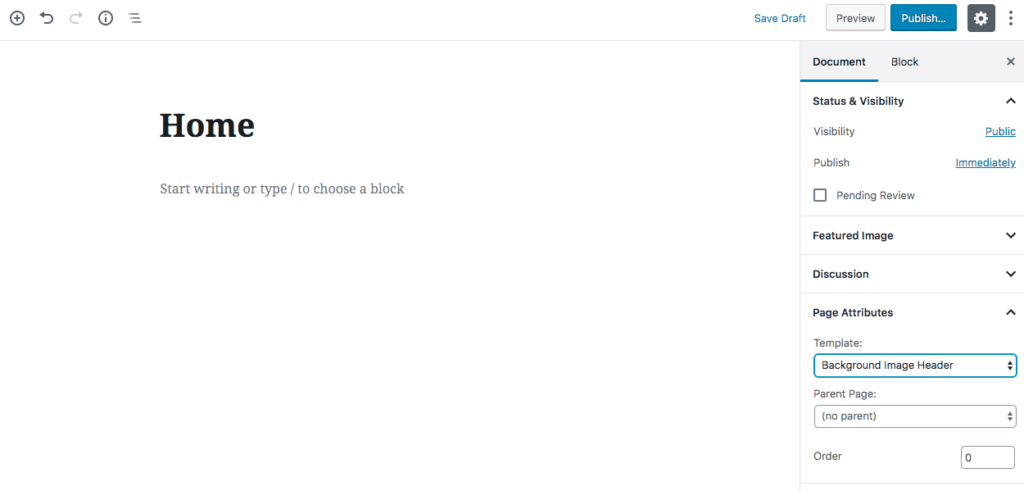
Add your text. This will appear above the homepage widget areas.
This template makes use of a custom field. Enable custom fields with the following steps. Click on the three dot icon in the upper right, and select Options. From there, make sure Custom Fields is selected under the Advanced Panels heading.


Once the Custom Fields are active, you’ll need to add a field called, “lead” and specify the text content. This field will display below the page title in a typeface smaller than the heading, and larger than the body copy. It’s formatted as a second level heading in the HTML.

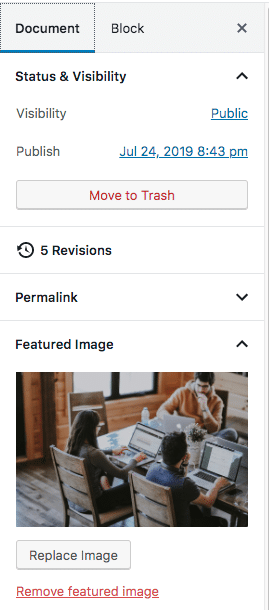
You’ll also want to specify a large Featured Image in the Document panel. The theme demo uses and image 2000 by 1333 pixels. Make sure to optimize your image file size.
After you have added a homepage, you’ll need to add another page for your posts. Add a blank page called Blog or something else. It doesn’t matter which page template you choose.
Once you have created a homepage and blog page, go back to the Customizer and select Homepage Settings. Under “Your homepage displays,” choose “A static page” and set the Homepage and Posts page drop-downs to the appropriate pages.

Featured Images
For the Background Image Header templates, make sure to set a Featured Image. This will appear as a page header background image behind the site title, navigation, page title, and custom lead field.